
Monday, February 13, 2012
Now you Can Open PDFs In Firefox without using adobe reader
Do you like this Story?
The latest Adobe X updated reportedly does not played well with the latest
version of Firefox. Many users report that when they were trying to open a PDF
in Firefox, they are unable to scroll to see the entire document. Most
of the time, the window locks and must be closed—or Firefox must be
restarted.
Fortunately, many Adobe Reader alternatives are available for viewing PDFs in Firefox. One of My favorite is Foxit Reader.

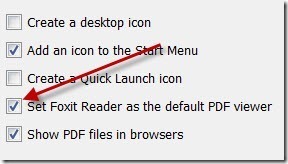
Click on the Download link on the right of the Foxit Reader page and save the file to your computer. Once downloaded, install Foxit Reader.

The install is bundled with the Foxit tool bar, so if you do not want to use it, be sure to uncheck it during the installation process.

If you want to be through with Adobe Reader altogether, you can select Foxit Reader as the default PDF reader on your computer.
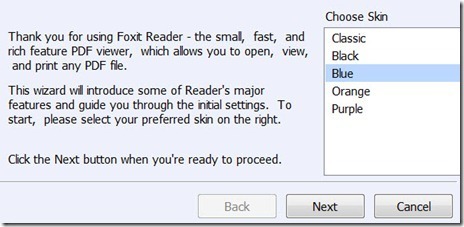
The first time you open Foxit Reader, you will be asked to select a color for the product’s skin. Classic and Blue are both easy-to-read choices.
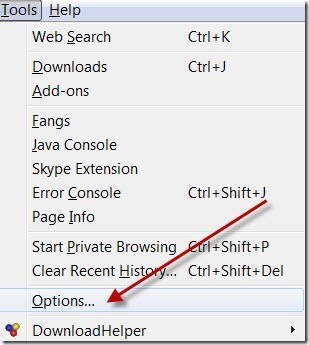
To set the PDFs to open with Foxit frm withn Firefox, u mst configure Firefox. Go to Tools>Options in ur browser.
Click the Applications icon at the top of the Options window.

Look for PDF in the list of document types. It may be labeled Foxit Reader PDF Document or even Adobe Reader PDF Document—either way, use the drop down menu beside each PDF entry (we had 2) to change from Adobe Reader to Foxit Reader. Click OK when finished.
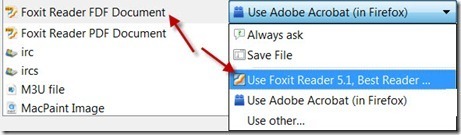
any PDF you click will now open inside Firefox with Foxit Reader. This should solve the lock-up problem caused by Adobe Reader. You can choose most any PDF reader—Foxit is not the only one available. We like it because it is clean and loads quickly, but some people may prefer a software with more options.
Fortunately, many Adobe Reader alternatives are available for viewing PDFs in Firefox. One of My favorite is Foxit Reader.

Click on the Download link on the right of the Foxit Reader page and save the file to your computer. Once downloaded, install Foxit Reader.
The install is bundled with the Foxit tool bar, so if you do not want to use it, be sure to uncheck it during the installation process.
If you want to be through with Adobe Reader altogether, you can select Foxit Reader as the default PDF reader on your computer.
The first time you open Foxit Reader, you will be asked to select a color for the product’s skin. Classic and Blue are both easy-to-read choices.
To set the PDFs to open with Foxit frm withn Firefox, u mst configure Firefox. Go to Tools>Options in ur browser.
Click the Applications icon at the top of the Options window.

Look for PDF in the list of document types. It may be labeled Foxit Reader PDF Document or even Adobe Reader PDF Document—either way, use the drop down menu beside each PDF entry (we had 2) to change from Adobe Reader to Foxit Reader. Click OK when finished.
any PDF you click will now open inside Firefox with Foxit Reader. This should solve the lock-up problem caused by Adobe Reader. You can choose most any PDF reader—Foxit is not the only one available. We like it because it is clean and loads quickly, but some people may prefer a software with more options.

This post was written by: Mitul Narula
Mitul Narula is a Student, blogger, and Web Designer Follow him on Twitter and have a look on his Blogger Profile|Google Plus
Subscribe to:
Post Comments (Atom)

.png "English")









0 Responses to “Now you Can Open PDFs In Firefox without using adobe reader”
Post a Comment