Showing posts with label Twitter (Social Media). Show all posts
Showing posts with label Twitter (Social Media). Show all posts
Monday, March 5, 2012

Social Pro 2.0.5 | 12 MB
Social is designed to bring back the fun and simplicity of online social networking. While it is important to keep track of those special to us through our social networks and services, having to constantly log and re-log onto separate sites on different windows can become a painful and tedious task. But now you can easily stay in touch with the social networks and services that matter to you all through accessing a single application with social!
Social makes it easier than ever to stay updated with your family and friends by alerting you of all recent posts from your social services. With a quick glance and you can see all your messages and updates from Facebook, Google+, Twitter and emails from Gmail instead of having to log onto separate sites for their services.
Social is also compatible with your instant messengers on Facebook and gTalk buddies. You can receive notifications of new messages and incoming chat requests from the menu bar. Previews of messages are available in multicolored notification bubbles designed to differentiate the services for better readability.
Main features:
* Support of Facebook, Twitter, GMail, GTalk and Google+
* Multiple accounts login
* Desktop and Mobile View
* Notification for new tweets
* Sound notification
* Ability to disable notification for each services
* Resizable windows
Download links :
Download
Monday, March 5, 2012 0
Sunday, January 29, 2012
With so many risks to your accounts and computer on the Web, wouldn't it be nice to know that none of the people you follow on Twitter are adding to those risks? Safego, a Bitdefender product, offers a free service that will scan your Twitter account for suspicious users, links, and messages. It won't take any action without your consent, but it can be set to alert you when a new issue arises. Here's how to get started:

Step 1: Head over to http://safego.bitdefender.com/twitter/
Step 2: Log in with your Twitter account. This means the Web site will not need you to sign up for a new account (hooray!).

Step 3: Authorize Safego when prompted by Twitter.

Step 4: Wait as Safego redirects you back to its site and starts scanning your Twitter friends for any suspicious behavior. The more people you follow; the longer this process will take.

Step 5: Once scanning is complete, check out the Friends link on the top banner (next to the Scan Now button). This will change to reflect how many, if any, of your friends are showing suspicious activity.
Step 6: Click on this Friends link to get a list of flagged friends.

Step 7: From the list that appears, you can choose to "unfollow" or clear your flagged friends.
In the notifications area (link at top, or right-hand side on dashboard) you'll see the alerts that are currently disabled. If you'd like to enable any of these to help protect your Twitter account, click on Settings at the top and choose the alerts that work best for you. Additionally, you can use Safego to scan a Twitter user for suspicious activities before you follow them from the Home dashboard.
Step 1: Head over to http://safego.bitdefender.com/twitter/
Step 2: Log in with your Twitter account. This means the Web site will not need you to sign up for a new account (hooray!).
Step 3: Authorize Safego when prompted by Twitter.

Step 4: Wait as Safego redirects you back to its site and starts scanning your Twitter friends for any suspicious behavior. The more people you follow; the longer this process will take.

Step 5: Once scanning is complete, check out the Friends link on the top banner (next to the Scan Now button). This will change to reflect how many, if any, of your friends are showing suspicious activity.
Step 6: Click on this Friends link to get a list of flagged friends.

Step 7: From the list that appears, you can choose to "unfollow" or clear your flagged friends.
In the notifications area (link at top, or right-hand side on dashboard) you'll see the alerts that are currently disabled. If you'd like to enable any of these to help protect your Twitter account, click on Settings at the top and choose the alerts that work best for you. Additionally, you can use Safego to scan a Twitter user for suspicious activities before you follow them from the Home dashboard.
Sunday, January 29, 2012 0
Saturday, January 21, 2012
Twitter users have deep anonymity when it comes to who they unfollow. Keeping a detailed record of your followers’ names to compare when you see your number of followers drop is about the only option for figuring out who unfollows you. Very few people have the time to keep such records.
TwitQuit keeps that detailed record for you, then alerts you when someone unfollows you. Alerts include the name of the person who unfollowed you.

Click the red Sign in with Twitter button to start using TwitQuit.
Enter your Twitter credentials, then click Authorize app.

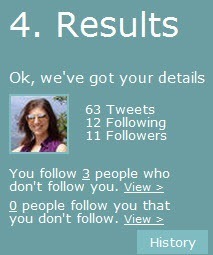
Immediately you will see results on the far right of the page. TwitQuit tells your current number of tweets, plus the number of followers and the number of people you are following.
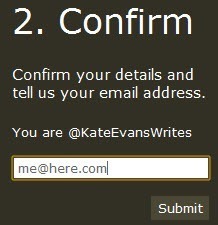
Enter your email address in the black box.
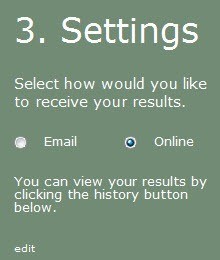
Finally, decide if you want to receive updates on who unfollows you via email or online via the TwitQuit website.
TwitQuit is not magic—it cannot tell you the entire history of who has unfollowed you since the start of your Twitter account. It can only track who unfollows you from the day you create a TwitQuit account. We like the simplicity of this app, and we especially like its overall purpose: to flesh out those who would dare unfollow us under the cloak of anonymity.
Follow me On twitter for daily updates @NoOneIsLikeMe_ And Like On facebook No One is Like Me _
Saturday, January 21, 2012 0
Saturday, December 31, 2011
 |
| Safego Logo |

Twitter which is one of the famous social networking sites, have also been exposed to the world of malicious attacks and if you are kind of a person who follows anyone then you have a bright chance of being attacked.
You can either follow your buddies or the person you know or you can follow anyone who follows you, but in this way you are prone to follow some spammer or attacker too. Consider a situation in which you have followed some suspicious user, then if he shares some malicious link with you, you won’t know, beforehand, that if the link will redirect you to some malicious website or not.
Scan Your Twitter Account Now! Click Here To Visit Safego Bitdefender.
Saturday, December 31, 2011 0

Hello My Loyal Blog Readers,
So are you searching for that how to post my tweets more stylish.I have a good solution for you and your Twitter Tweets that you post.Okay See a below screenshot that how can you style your Twitter Tweets :

This is surely a great way to impress people and tweet differently.
Click Here To Visit Flip Twits

As we all know that Twitter is very popular in these days in spite of retweeting ,tweeting and following some people on twitter. Did you know when you joined Twitter. Okay I will tell you that how to know the joining date of your Twitter account.
- First of all visit Whendidyoujointwitter site.
- Type your Twitter Username
- Now click on Find Out Button
- Now you can see joining date of your Twitter account.
Twitter Grader : What’s Your Twitter Grade

Do you want to know that what is your Twitter Grade.Follow the below simple steps to know your Twitter Grade:-
- Just Visit Twitter Grader Site
- Now type your Twitter Username
- Hit Enter after 35 seconds Twitter Grader show you the report.

Twitter Grader Will Show You These Reports:-
- You Twitter Account Rank.
- Followers and Following report.
- The updates you posted on twitter.
- A Brief Bio of your account including joining date of your Twitter Account
- You can also enter a username and check whether he is following you or not.
How Twitter Grade Is Calculated:-
- More Number of followers have, more the twitter grade.
- If you a followers having high twitter grade, your grade will be high.
- More the tweets or updates, the better the twitter grade for you.
- There should be higher ratio of followers to following .
- The more your tweets are retweeted or your twitter name mentioned in twitter, the better twitter grade for you.
Subscribe to:
Posts (Atom)